How managers get a clear view of what everyone’s working on in Notion
Managers have a lot on their plates and the last thing they need is more tools. Learn how to manage 1:1s, meetings, docs, and tasks all in one place.
Managers' plates often look like they’re at a buffet — extremely full. Instead of food, it's many types of work, the people executing it, and balancing all the timelines to keep everything moving. This is even more difficult when teams use different tools to do their jobs.
Most project management apps just point to the work, meaning you’re always switching between different tabs and tools. But in Notion, you can unite project management with the work itself, along with the people and communication to get that work done.
We’ll show you how to set up a system so you and your team can spend less time going back and forth to find information, and more time getting down to important work. You’ll have total visibility into what’s going on, what stage projects are at, and each team member’s current workload.
In the first section of this guide, we’ll look at some of the different ways you can use Notion to coordinate your team’s work.
Company-wide and team-specific wikis
Time is everyone’s most valuable resource, so set your team up to use it wisely. Make information easily accessible, so teammates aren’t listlessly digging around outdated documentation or disrupting the flow state of a colleague to ask where something is.
Create a top-level homepage, or company wiki, where all employees can access shared information like the benefits policy, the mission, vision and values, and company goals. With things like headers, columns, and more, you can make information quickly accessible at a glance.
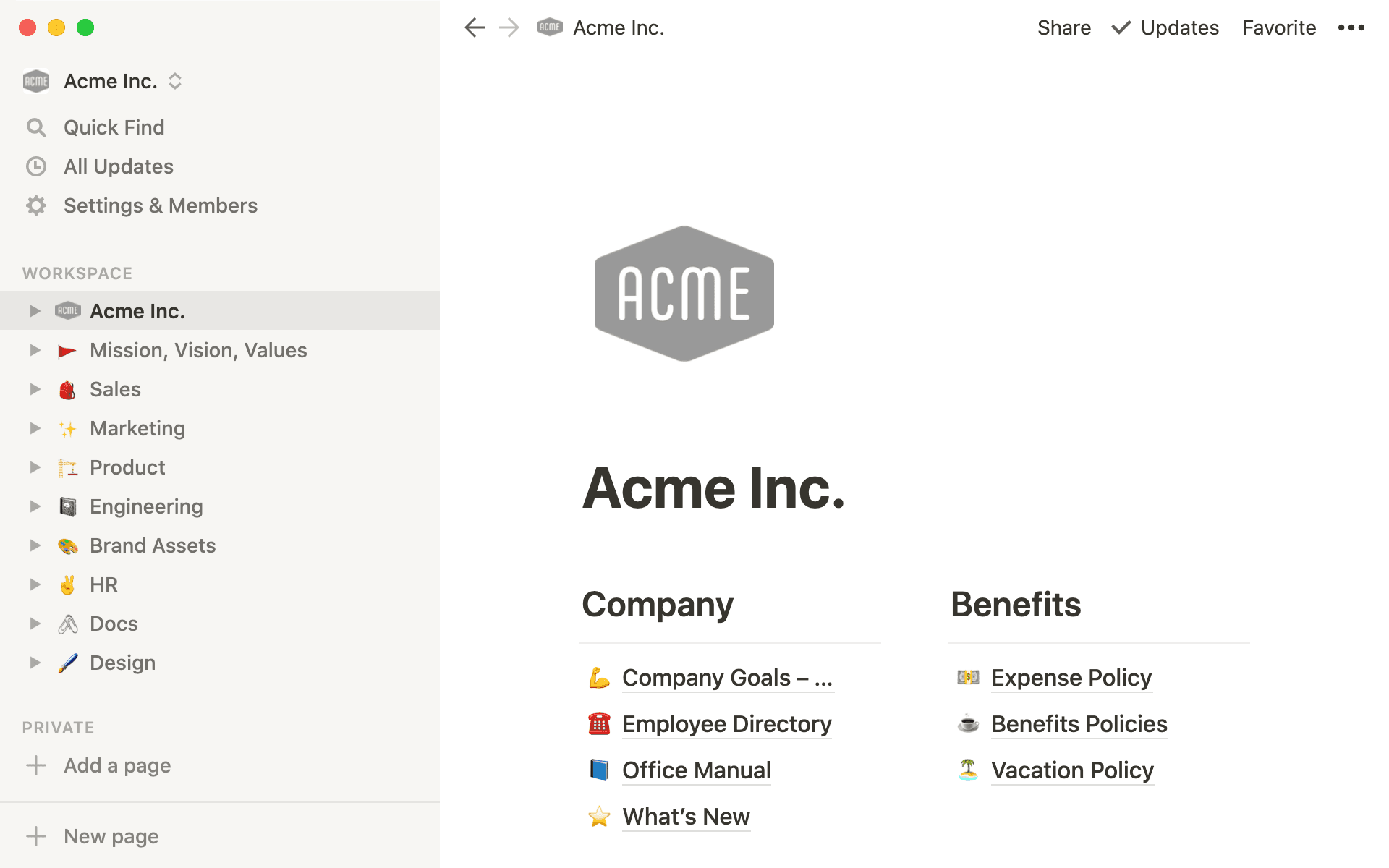
Then, each department or team should have its own, top-level homepage in the sidebar.
Team hubs are important for finding and using info — further cementing this self-service mentality where team members can find what they need without always having to ask their manager. Plus, it enables teams to customize their homepages based on their specific needs.
Inside the team’s homepage will live important sub-pages, like one for team structure, or a database of all projects.
As a manager, this foundation is built to grow with your team. As you build out processes or add new tools, this information can be neatly organized in the team's wiki, neatly blending flexibility with structure.
Company-wide databases for work
You can store all kinds of complex, diverse information inside databases. When certain information is accessible by your entire team, work becomes centralized, leading to less confusion.
Create three company-wide databases for your roadmap, documents, and meeting notes.
Roadmap
Your company-wide roadmap should be shared by all teammates, so they can see what's planned (and plan for it). Use a board database here, which is ideal for project management.
To categorize the entries in this database, use properties. These can be customized based on the work at hand.
Here are a few that will be useful:
Deadline — add a
Dateproperty and rename it "Deadline"to ensure that everyone knows when work must be completed by.Project owner — a
Personproperty allows you to tag others in the workspace by typing@followed by their name. You can call this "Project owner" to tag the person who is responsible for the project.Status — you can assign statuses to projects by using a
Selectproperty and creating different labels, such as "In progress," "For review," and "Done."
Every entry in your roadmap opens up as a page. So all project work is collected in one place, enabling cross-functional teamwork because everyone knows where to get project-specific information.
By organizing work in a board, managers get a high-level glance at all the work their teams are executing.
You can create different views in your database which allows you to see the same information in different ways. To create an alternative database view, go to the Views dropdown on the left. Click Add a view, select the type of database you want, rename it, and click Create.
You can customize this further, and here are some views that might be useful for your roadmap:
Board by status — a board view allows you to group all entries by status, so you can see project statuses, and easily drag and drop projects across from one stage to the next. To group your board by status, go to
Group byand selectStatus.Board by person — grouping your projects by the person responsible will allow you to quickly see each team member's workload. In the
Group bydropdown, selectProject owner. Each person will have their own column in the board, and their project cards will appear underneath.Calendar — a calendar view lets you see all projects by their deadlines, as items will appear on the date they are due.
Timeline — a timeline organizes your projects chronologically, letting you view the timespan of every project. For timeline view to work well, you'll need two date properties, for the start and end date of each project.
Documents
You’ll also need a place to store documentation.
A documents database gives your team a place to go to find any documents they might need to help them get work done, from updated processes to design specs.
Your docs database could be a table or list database, and the following properties will come in handy:
Last edited time — this lets you see the most recent updates to a document so you can track progress.
Type of doc — add a
Selectproperty and create tags for different types of documents you create (technical spec, architecture overview, etc.).Status — to assign status to your documents, use another
Selectproperty. You can then tag documents asIn progress,For review, etc.Reviewers — with a
Personproperty, tag anyone who needs to review the document.Priority — assign a priority level with a
Selectproperty. This will come in handy later if you want to arrange your docs in order of priority.
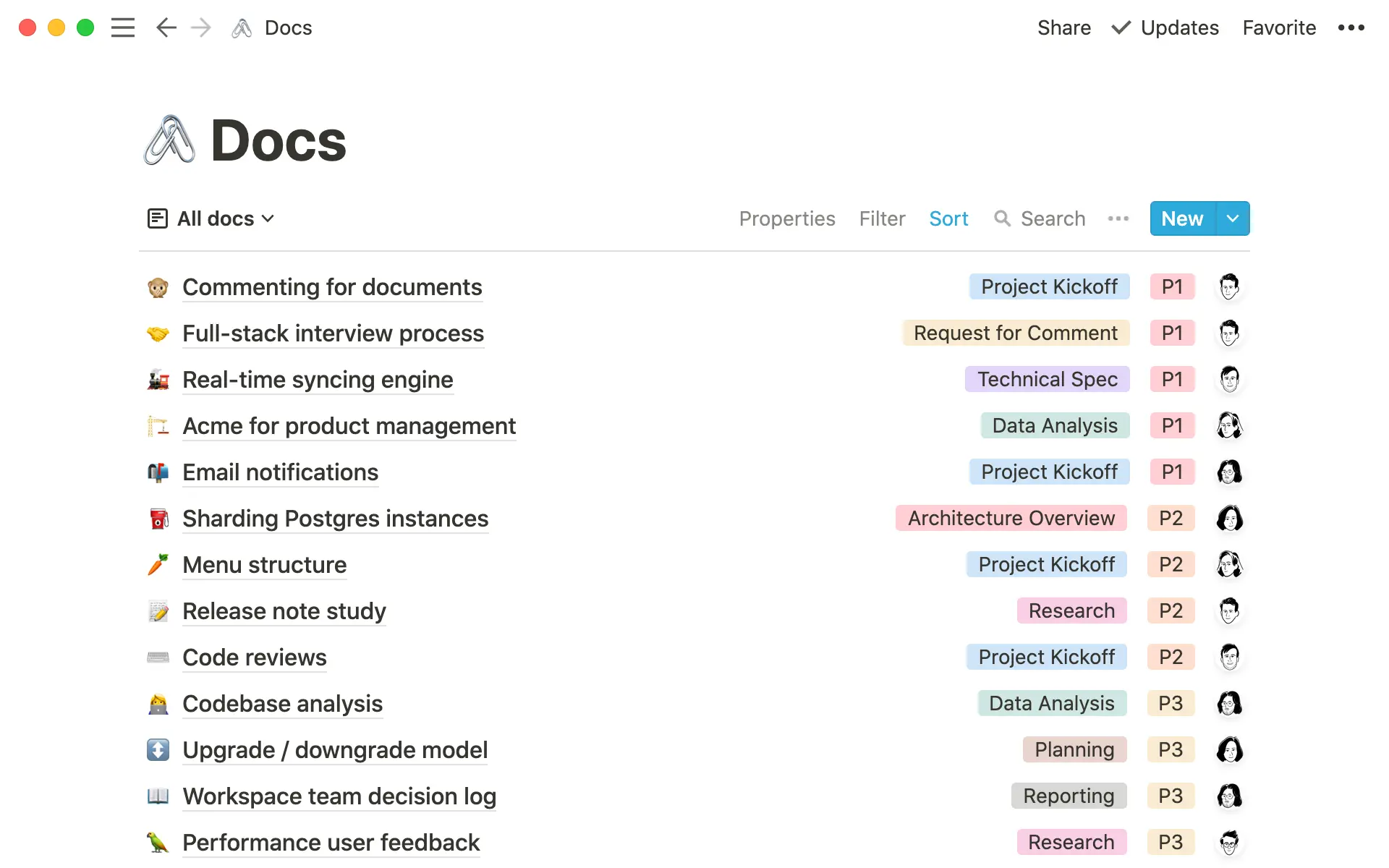
Some different views you could use for your documents database:
What’s current — a filtered view showing documents tagged “In progress” or that relate to an ongoing project.
Document type — create views for different types of docs, such as a view for all your project proposals or research documents.
By person — you can have views for each of your team members so that they can see any documents where they are tagged.
Meeting notes
With a shared meeting notes databases, even employees in different time zones can provide async updates and review action items — they're part of these meetings, even if they weren't there physically.
Some useful properties for a meeting notes database:
Created time — use the
Created timeproperty so you can see when a meeting took place and organize your list with the most recent at the top.Type of meeting — add a
Selectproperty and create tags for different types of meetings, like weekly sync or all-hands.Meeting participants — a
Personproperty will let you tag all the people who attended the meeting.
Just like with your projects and docs, you can create views based on your database properties. For example, you can create a view of your meetings database that's filtered to show only meetings that took place this week. After you've added a new view, you can click on Filter, and choose where Meeting date, is within, The past week.
The other aspect of a manager’s job is supervising the people that make up your team. Here are some tools you can use to manage the people on your team.
Share a page with all your direct reports
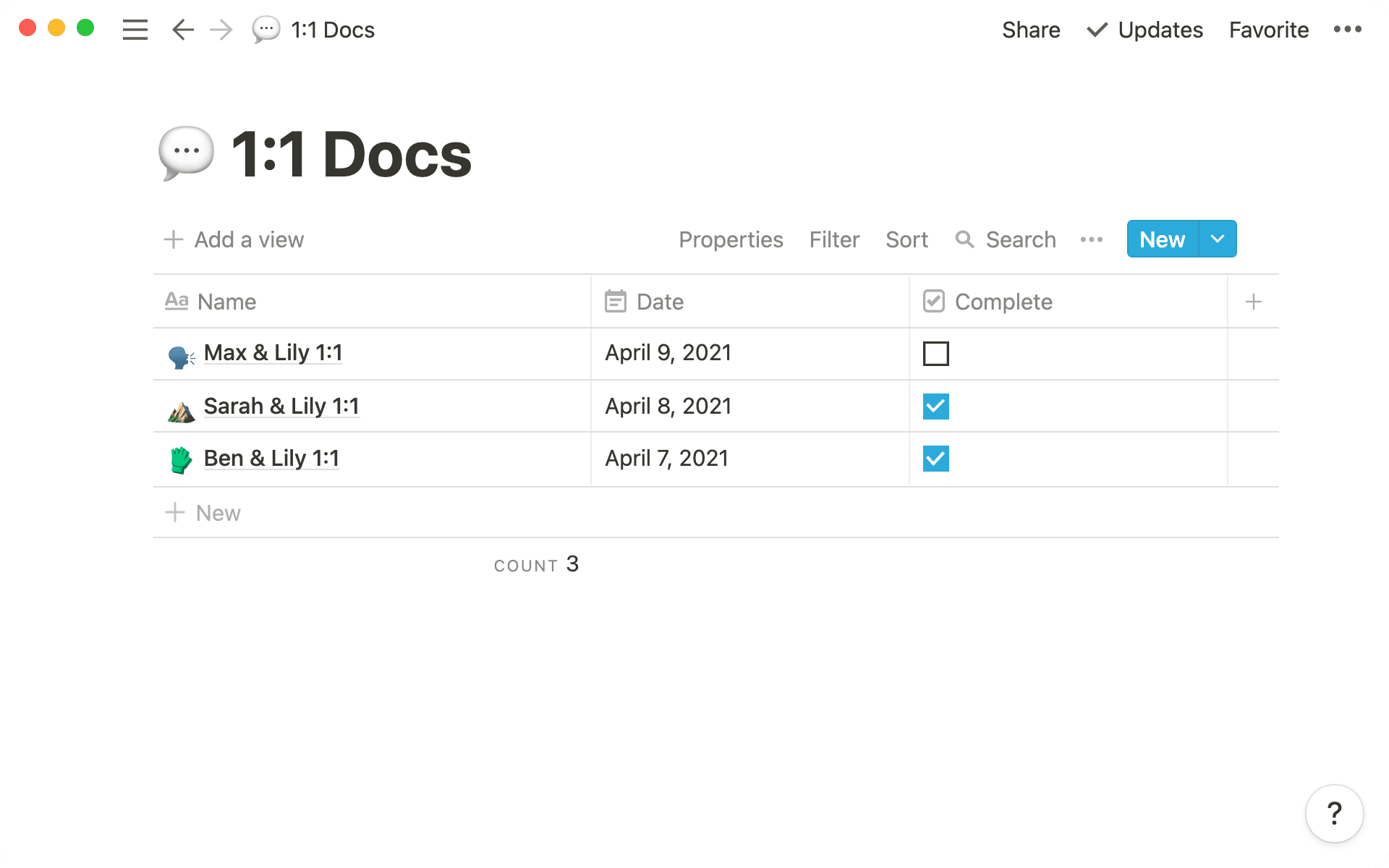
Create a shared page between you and all your direct reports for 1:1 meetings, which will give you both a place to take notes and prepare. This can be a full-page database.
To streamline these meetings, you can create a template that prompts each attendee to provide updates or feedback. That way, you give the meeting some structure. And when you learn a better way to conduct these meetings? Just update the template.
As part of the template, you can even include that teammate's quarterly goals. If you have a database with your team's goals, link a view of that database at the top of your meeting notes to have a weekly review of their progress.
To create a linked database, use the / command and select Create linked database. From the dropdown, choose the database you want to link to. In this case, it'd be a database where you enter all your team's goals. Then, apply a filter so that this database only displays goals assigned to this particular team member.
Upvotes
An upvote database gives team members a chance to voice their opinions and allows you to take your team’s considerations into account.
You can use this database to collect feedback and suggestions before Q&A sessions and all-hands meetings or let team members vote on which product feature should be up next for development.
We have a full guide to creating and using an upvote database, which helps managers ensure their team members feel included in company decision-making.
By setting up database templates, you'll make sure that everyone is reading from the same script, and starting every project, meeting, or document with the same criteria. They’re especially helpful for recurring projects or meetings.
To make a database template, click the arrow next to New on the database, and click + New template.
You can create templates for work that's often repeated. For example, in your projects database, you could have a template for the types of projects your team often works on (like a design spec or a bug report), and in the meetings database, create templates for meetings that happen regularly (like a weekly sync or post-mortem).
In your docs database, you could create a template for RFC.
This stands for "Request for Comment,” and it’s a document that invites teams to join a discussion — a great way for managers to get their team's feedback about a particular idea.
You can fill out your templates with information that will help teams get started quickly on the work, including headers and bullet points, questions, and checklists for action items. They'll help your team follow follow processes and reduce repetitive work.
Now that you have systems for managing both work and people, Notion helps managers link this work together, so they have a full line of sight into projects and the people behind them.
Relational databases
Notion gives you the ability to link databases, which can connect big projects with the smaller tasks it takes to complete them.
For example, by connecting your projects database with your meeting notes, you’ll be able to link meetings to the projects they relate to. When you open up the project you’ll have access to all the meeting notes that correspond to it.
To find out more about linking databases, have a look at our guide to using relation and rollup properties.
Goal setting
It’s easy for team members to get lost in the day-to-day and lose sight of how their work fits into the larger team and company goals.
We’ve devised a goal-setting system that keeps goals top of mind, encourages taking action towards them and ensures that everyone can see the context behind the work they’re doing.
It's easy for everyone to share information and work together in Notion, both within your team and with other departments across your organization.
Here's how we think about the best ways to work with other teammates:
Use person properties — whether it's the person who's leading the meeting or the one responsible for completing a project, using a person property creates a clear owner of the work at hand. It's also the person anyone with questions about the work should come to.
Where to use comments — there's a lot more to say about , but here's how you can use them effectively. For anything in-line and specific, comment and tag teammates in the body of a page. For high-level updates, use page comments (at the top of a page) to communicate that something is ready for review or you've completed feedback.
Set up permission groups — these make sharing work across departments a breeze. You can for each team at your company. Then when work is ready to share with the engineering or marketing team, all you have to do is share with that group, instead of going through and sharing with individual members of those teams.


Er der noget, vi har glemt?